ChatGPT Security History Explained: What It Shows and How to Review Your Account
ChatGPT now offers Security history for reviewing sign-ins, MFA changes, passkeys and account-security events. Learn what the feature can reveal, what it cannot prove, and how to investigate suspicious activity safely.
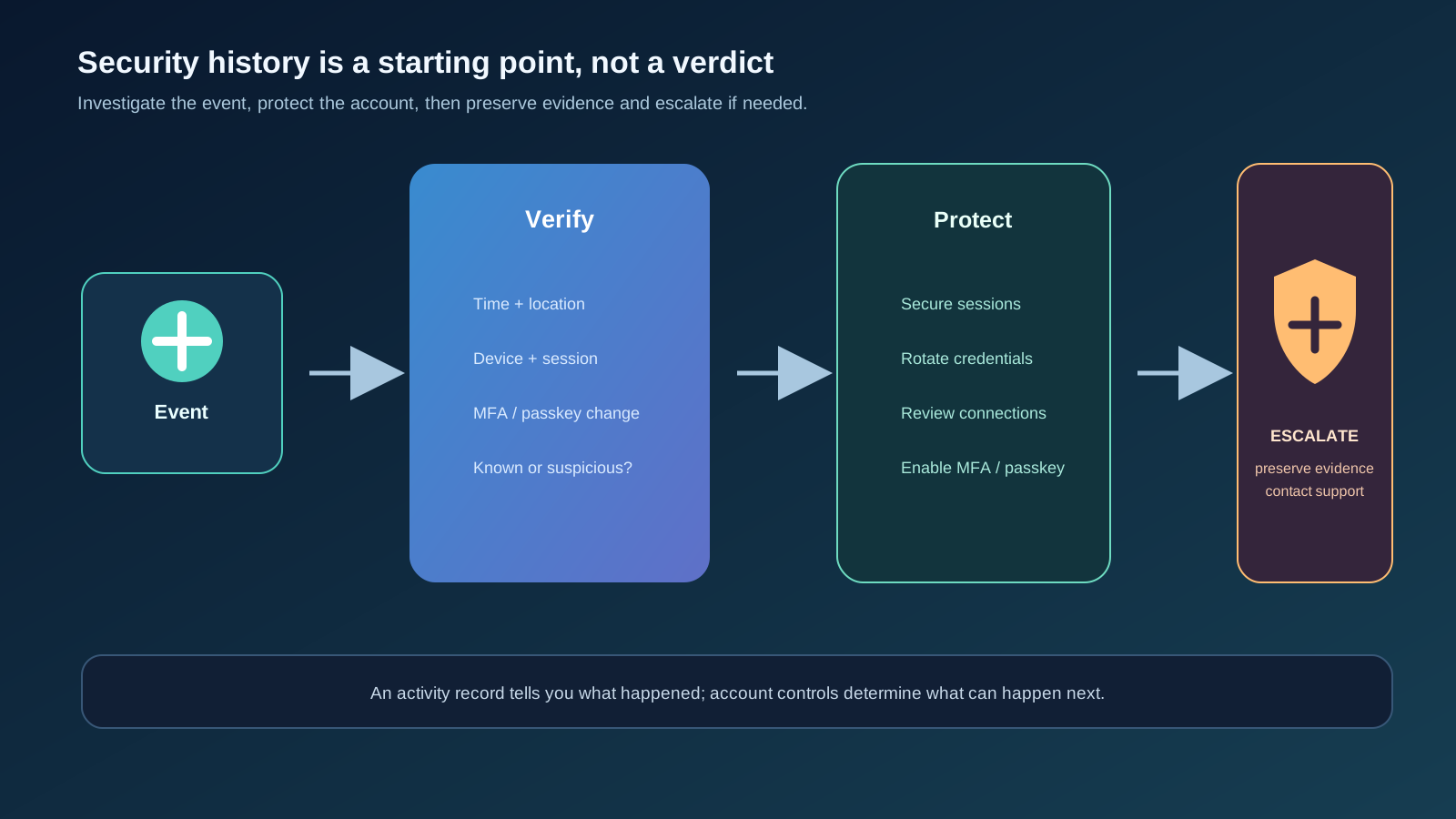
OpenAI’s new Security history feature gives ChatGPT users a clearer way to review recent account-security activity. It can show sign-ins, sign-outs and changes to MFA, passkeys and other security settings, with time, location and device details where available. That is useful visibility, but it is not a complete breach detector. An event record can help you notice an unfamiliar change; it cannot by itself prove who acted, explain every session, recover a stolen credential or guarantee that an attacker left no other trace. The right workflow is review, verify, protect, preserve evidence and escalate.
What ChatGPT Security history shows
A timeline for recent account-security events.
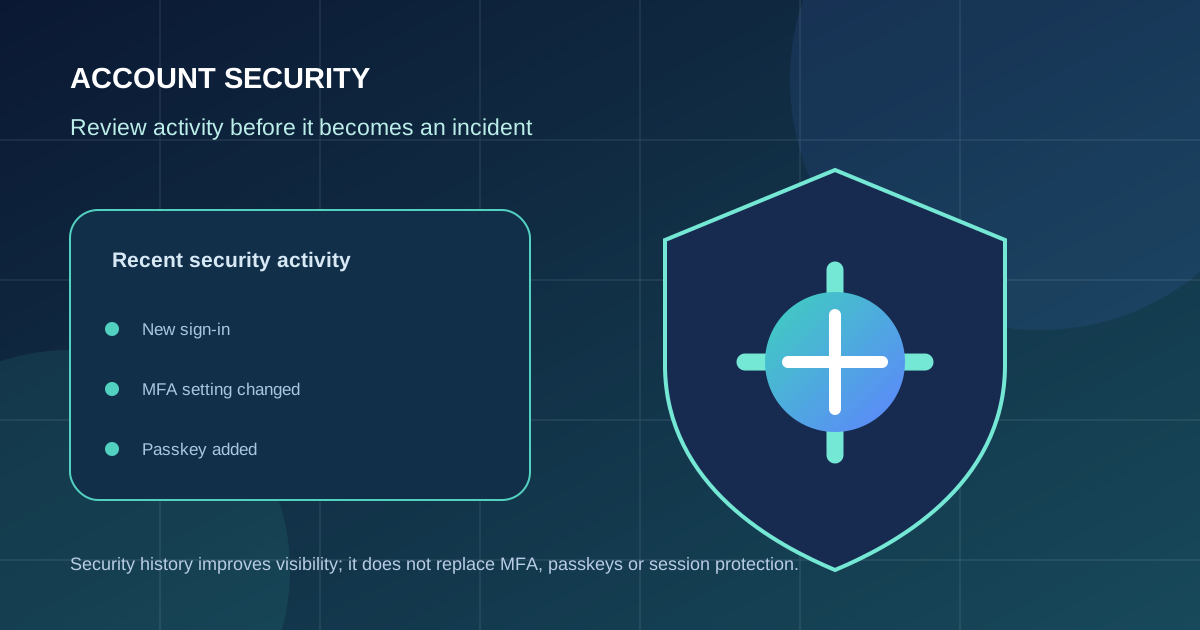
OpenAI’s September 25 release note says Security history lets users review recent sign-ins, sign-outs and changes to multi-factor authentication, passkeys and other security settings. Events can include time, location and device details, although some details may be approximate or unavailable.
On the web, OpenAI directs users to Settings, then Security and login, and finally Security history. The feature is most useful as a timeline: it gives an account owner a place to ask whether a new sign-in, MFA change or passkey addition matches something they intentionally did.
The feature should be understood as a visibility layer. It is different from a list of every ChatGPT conversation, a full device-forensics report, a guarantee that all sessions are visible, or a replacement for strong authentication. Availability and the level of detail can vary by account, workspace and rollout state.
This fits the broader account-boundary lesson in our Sponsored Agents privacy analysis: users need to understand which identity, data and permissions are active before trusting an AI interaction.
| Event | What it may indicate | What to verify |
|---|---|---|
| Sign-in | A session was created or an account was accessed | Time, location, device, your own activity and active sessions |
| Sign-out | A session ended | Whether you initiated it and whether other sessions remain |
| MFA change | Authentication requirements were changed | Who changed it, recovery options and current MFA method |
| Passkey change | A passkey was added or removed | Whether the device belongs to you and whether the passkey remains trusted |
| Security-setting change | An account-protection control changed | The exact setting, current value and any related notifications |
What an unfamiliar event does and does not prove
An anomaly is a reason to investigate, not a complete incident conclusion.
A location may be approximate because of VPNs, mobile networks, corporate gateways or IP geolocation. A device label may be unfamiliar because of browser changes, operating-system updates or shared hardware. Conversely, a familiar location does not prove that the activity was safe: an attacker may use a known network, a compromised device or a stolen session.
Treat the timeline as one evidence source. Compare it with your email alerts, device history, password-manager records, browser sessions, organization logs and any recent changes you remember making. Look for combinations that are harder to explain, such as a new passkey followed by an unfamiliar sign-in, an MFA change you did not request, or security-setting changes at a time when you were not using the account.
Do not click links in an unexpected message merely because it refers to a security event. Open ChatGPT directly through your normal bookmark or type the official address yourself. Phishing messages often use genuine-looking security language to make the recipient reveal a password, one-time code or recovery detail.
The evidence-first approach mirrors our PageBreak security workflow: a signal should lead to a bounded verification step, not an unverified conclusion.
Common Mistakes
- Assuming an approximate location is exact proof of compromise.
- Ignoring an unfamiliar MFA or passkey change because the sign-in location looks familiar.
- Responding to a security email through an unverified link.
- Deleting evidence before recording the event details.
- Changing one setting while leaving unknown sessions or credentials active.
A safe response to suspicious activity
Protect first, investigate in parallel, and avoid making the evidence disappear.
If an event does not look familiar, record the visible details first: timestamp, approximate location, device, event type and any related notification. Take a private screenshot if appropriate, but redact tokens, email addresses or other sensitive information before sharing it. Do not publish the screenshot publicly while asking for help.
Next, use the official account-security controls available to you. Change the password from a trusted device if you suspect credential exposure, review and revoke unrecognized sessions or connections, verify the recovery email and phone, and ensure MFA or a passkey is configured to an authenticator you control. If you are in a managed workspace, notify the administrator because the organization may have additional logs or session controls.
If the event involves an MFA reset, passkey you did not add, repeated sign-ins, data exposure or an inability to regain control, contact OpenAI Support through the official help channel. Give them the event details and approximate time, but never send a password, one-time code, API key or recovery secret.
For connected tools and agent sessions, also review the permission boundaries described in our Agents API guide: account security and application-level authorization are related, but they are not the same control.
- Record the event before changing settings.
- Use a trusted device and direct official navigation.
- Review sessions, connected apps and recovery methods.
- Rotate exposed credentials and never share one-time codes.
- Notify a workspace administrator when the account is managed.
- Escalate persistent or high-risk anomalies to official support.
Security history is not a complete security boundary
Visibility helps response, but prevention still depends on account and device controls.
A timeline can tell you that a setting changed, but it may not tell you whether the root cause was a stolen password, a compromised browser, a malicious extension, a shared device, a social-engineering attack or a legitimate action you forgot. It also may not display every piece of application activity or every downstream data access.
Strong prevention remains layered: use a unique password, protect the email account that can recover ChatGPT, enable MFA or a passkey, keep devices and browsers updated, remove unused extensions and connected apps, and avoid entering credentials into pages reached from unexpected messages.
For organizations, add workspace-level controls such as SSO, provisioning, role-based access, retention policy, approved connectors, audit exports and a clear incident owner. Individual users should not be expected to reconstruct an enterprise incident from a personal timeline alone.
The same defense-in-depth principle appears in our Astra safeguards analysis: monitoring is valuable, but it cannot replace least privilege, isolation, authorization and recovery.
| Layer | Purpose | Example |
|---|---|---|
| Credential | Stop password reuse and theft from becoming access | Unique password and protected recovery email |
| Authentication | Add a second proof of identity | MFA or a hardware-backed passkey |
| Session | Limit active access after compromise | Review and revoke unfamiliar sessions |
| Application | Control connected data and actions | Least-privilege plugins and connectors |
| Response | Detect, contain and recover | Security history, logs, support and workspace escalation |
A practical monthly account-security review
A small routine is easier to maintain than an emergency investigation.
Open Security history periodically and look for changes you cannot explain. Confirm that your MFA method or passkey is still the one you expect, review connected apps and remove anything unused, and check that your recovery information is current. If you use ChatGPT Work, confirm that you are in the intended workspace before sharing files or invoking connected tools.
Keep a private record of the date you reviewed the account and any changes you made. This is not about creating anxiety or checking every approximate location obsessively. It is about creating a baseline so an unexpected change is easier to notice and explain.
If you manage a team, publish a short response procedure: do not share credentials, record the event, revoke suspicious access, notify the owner, preserve evidence and escalate through the official channel. A simple runbook prevents people from improvising under pressure.
account_security_review.yamlreviewed_at: 2026-09-27
account: <redacted>
security_history_checked: true
mfa_or_passkey_verified: true
unknown_sessions: none
connected_apps_reviewed: true
changes_made: []
follow_up: noneTips
- Review from a trusted device, not an unexpected email link.
- Use a password manager and unique credentials.
- Prefer a passkey or strong MFA method you control.
- Remove unused connected apps and extensions.
- Keep support and workspace-admin contact paths bookmarked separately.
What Security history does not prove
Security history does not prove that an account is safe simply because the timeline looks familiar. It does not replace MFA, passkeys, device security, connected-app review, workspace controls or incident response. It also does not mean every displayed location is exact or every relevant activity will appear in one view.
The useful interpretation is narrower: the feature gives account owners a better starting point for recognizing changes in authentication and security settings. When combined with strong credentials, least privilege, careful phishing resistance and a clear response path, that visibility can reduce the time between suspicious activity and protective action.
The durable takeaway is simple: review the timeline, verify the event, protect the account and preserve evidence. Treat visibility as one layer of security—not as a substitute for the controls that prevent unauthorized access in the first place.
FAQ
Where can I find ChatGPT Security history?
On the web, OpenAI’s release note directs users to Settings, then Security and login, and then Security history. Availability and details can vary by account, workspace and rollout.
What events can it show?
OpenAI says it can show sign-ins, sign-outs and changes to MFA, passkeys and other security settings, with time, location and device details where available.
Does an unfamiliar location prove my account was hacked?
No. VPNs, mobile networks and IP geolocation can make locations approximate. Treat it as a signal and compare the event with your devices, sessions, notifications and recent actions.
What should I do after seeing a suspicious event?
Record the details, use direct official account controls from a trusted device, review sessions and recovery methods, rotate exposed credentials, notify your workspace administrator if relevant, and contact official support for persistent or high-risk issues.
Does Security history replace MFA?
No. It improves visibility after or around an event. MFA, passkeys, unique credentials, secure devices and connected-app controls remain important preventive layers.
Sources
Primary and authoritative sources reviewed for this article.
- OpenAI Help Center: ChatGPT Release Notes — Security history
Official release note for Security history, its event types, available details and navigation path.
- OpenAI Help Center: Using Codex with your ChatGPT plan
Official account and usage guidance referenced for secure navigation and account-support context.
Conclusion
ChatGPT Security history is a useful accountability feature because it gives users a clearer view of changes that matter: sign-ins, sessions and authentication settings. Its value depends on how it is used. Review the record, verify approximate details, protect the account through trusted controls, preserve evidence and escalate when the event cannot be explained. Visibility can shorten response time, but strong authentication and careful permission management remain the foundation of account security.